Using Wealtie: How to set up categories in Wealtie so your spending makes sense
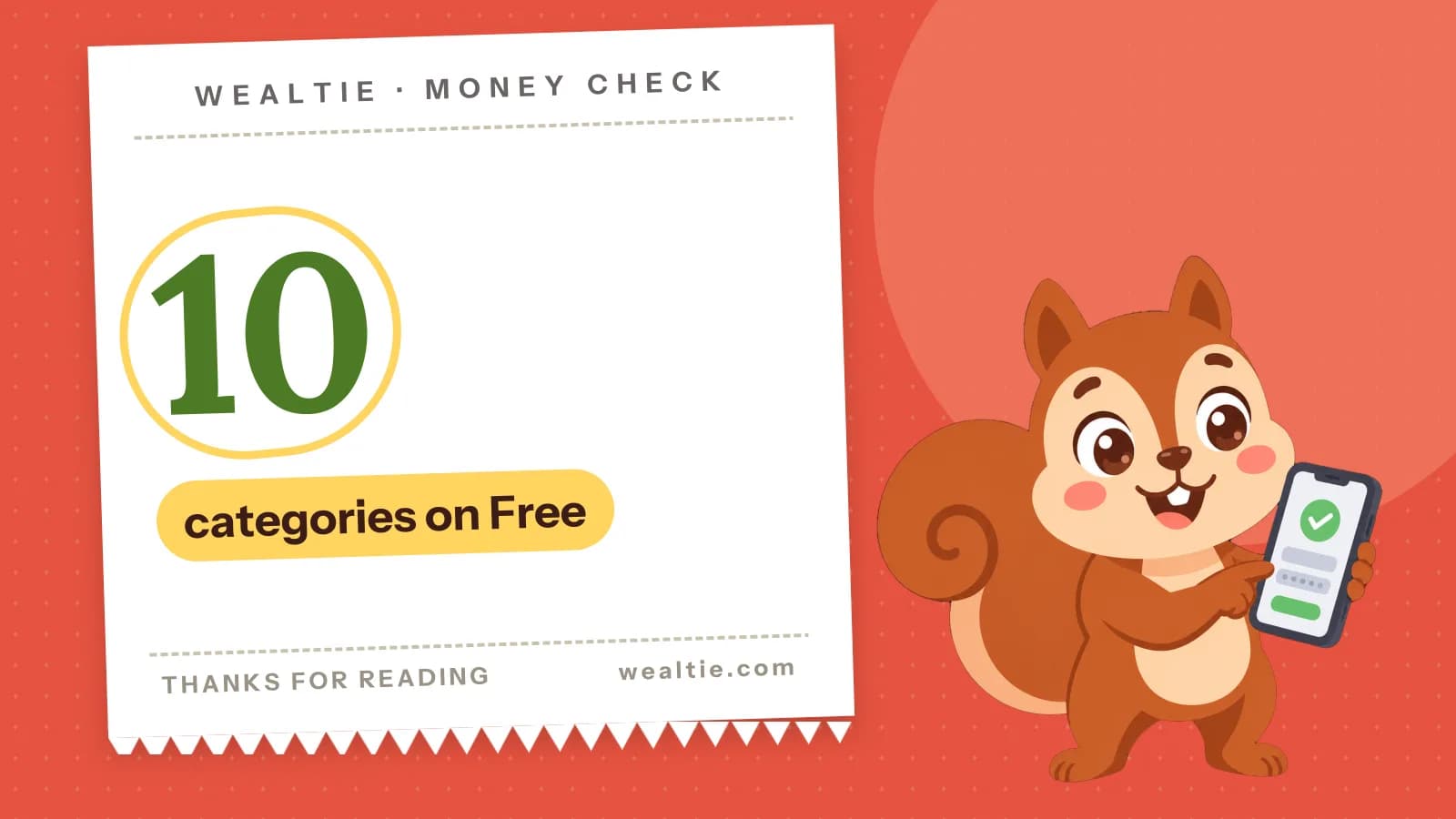
To set up categories in Wealtie, pick the ten or so places your money goes, name them your way and give each an emoji. Free holds up to ten in a flat list, and Pro removes the limit and nests them four levels deep.
 By Wealtie Team · 3 min read
Key takeaways
- Wealtie offers fifteen common categories at sign-up to tick, rename or skip.
- The Free plan holds up to ten categories in a flat list, and Pro removes the limit and nests them up to four levels deep.
- Build categories around decisions you'd make differently, and group anything small enough that you wouldn't.
- Categories come back in the spending chart, the transaction list, your budget shares and analytics.
How do you set up categories in Wealtie?
Start from the suggestions at sign-up. Wealtie offers fifteen common ones, including Rent, Groceries, Utilities, Phone, Subscriptions, Going Out and Shopping. Tick the ones that fit, rename any of them, or skip the list and start from blank.
Each category has a name you choose and an emoji. You can add more later, and nothing you pick at sign-up is permanent. Every one of them can be renamed, given a different emoji or deleted.
Before you tick everything, look at your last month or two of spending. What you bought tells you more than a list does.
How many categories should you have?
About ten for most people, and that's what the Free plan holds. Fewer than six and everything lands in "Other". More than twenty and you'll spend your time deciding where a coffee goes.
A good test for any category is whether you'd do something different if it went up. If groceries jumped, you'd change how you shop, so groceries earns its place. If "stamps" jumped, you wouldn't care, so stamps can live in something larger.
Here's one set of ten that covers most households:
| Category | What goes in it |
|---|---|
| Rent or mortgage | Housing payment |
| Utilities | Energy, water, internet, phone |
| Groceries | Food shopping and household basics |
| Transport | Fuel, fares, parking, taxis |
| Eating Out | Restaurants, coffee, delivery |
| Subscriptions | Streaming, apps, memberships |
| Shopping | Clothes, things for the home |
| Health | Pharmacy, dentist, gym |
| Fun | Hobbies, nights out, trips |
| Other | Anything that doesn't fit, and keep it small |
Swap in what's true for you. If you've got children, a pet or a car that eats money, it deserves its own line.
What should you name them?
Whatever you'd say out loud. You'll be picking from this list dozens of times a month, so short names you recognise instantly beat tidy accounting terms. The emoji helps here as well, since you'll spot a shopping trolley faster than you'll read a word.
If your household has its own words for things, use them. A category called "Friday Pizza" is fine if that's where the money goes.
When should you add a new category?
When "Other" starts to fill up with the same kind of thing. Look at it at the end of each month. If there are several entries for the same thing, that's a category you didn't know you needed.
Then look for the opposite. If a category got two entries in three months, fold it into something larger. On Free, that frees up a slot. On any plan, it means less to scroll through when you log something.
Change them when you need to, since your spending changes too. A new baby, a move or a new job will usually call for a rethink.
How do subcategories work on Pro?
Pro removes the limit of ten and lets you nest categories up to four levels deep. Health, Gym, Classes, Yoga is as deep as it goes. Each card shows how many direct subcategories it has and opens only the branch you tap.
Nesting helps when you want a summary and the detail at once. Food can hold Groceries and Eating Out, and Eating Out can hold Coffee and Delivery. You'd see the Food total at a glance, and you could look closer when the number surprises you.
Don't nest for the sake of it. Two levels will do for most people. If you delete a parent, everything under it goes too, and the app tells you how many subcategories are affected before you confirm.
Where do categories show up after that?
In four places, and that's where the setup pays off.
The Monthly Spending chart on the home screen is a ring of your categories, each with what it came to. The transaction list can be filtered by category. In spending analytics, you can see every category with its total and look at one on its own.
The fourth is your budget. Give a category its own share of the monthly limit, say 400 for groceries, and that share fills up separately as you spend. The budget tracker page shows how the shares work, and setting up your first budget walks through it.
How do you keep logging fast?
Pick a category when you log, every time, and don't leave things to sort out later. With ten categories, it takes a second. Going back through a week of "Other" isn't something most people end up doing.
If you can't decide between two, pick one and be consistent. A coffee on the way to work can be Eating Out or Transport, and either's fine as long as all of them go in the same place. Your month-on-month comparison only works if the rules stay the same.
The full list of what's possible is on the expense categories page, and the expense tracker page covers logging.
Questions people ask
Up to ten on the Free plan, in a flat list. Pro removes that limit and lets you nest categories up to four levels deep.
Yes. Every category offered at sign-up can be renamed, given a different emoji or deleted, and you can add your own later.
Everything nested under it is deleted too. The app asks first and tells you how many subcategories are affected.
The ones your money goes on and that you'd act on if they rose. Most people do well with about ten, such as rent, utilities, groceries, transport, eating out, subscriptions, shopping, health, fun and other.
This article is general information, not financial, tax or legal advice. Your situation is your own; check the numbers that apply to you before you act on them.