Using Wealtie: How to move from a budget spreadsheet to Wealtie, keeping what works
To move from a budget spreadsheet to Wealtie, carry over your categories and monthly amounts, add your accounts with today's balances, and start logging on the 1st. Old history stays in the spreadsheet; Wealtie doesn't import it, but it exports every transaction as CSV, so your formulas keep working.
 By Wealtie Team · 3 min read
Key takeaways
- Carry over what works from the spreadsheet: categories, monthly amounts and the rules you budget by.
- Start on the 1st of a month with today's account balances; leave the old history in the spreadsheet.
- Wealtie doesn't import spreadsheet history, but it exports all your data as a ZIP of CSV files, so your formulas can keep running on new data.
- The main gain is logging: a purchase is a few taps on your phone at the till, instead of a receipt waiting for the weekend.
- Run both for one month if you're unsure, then compare which one you actually kept up to date.
How do you move from a budget spreadsheet to Wealtie?
Carry over your categories and monthly amounts, add your accounts with today's balances, and start logging on the 1st of a month. Keep the spreadsheet for history and, if you like, for analysis.
A spreadsheet that's worked for you has done the hard part already: you know your categories, your numbers and the rules you budget by. Moving to an app isn't starting again. It's moving the plan somewhere that's easier to keep up to date.
Why move from a spreadsheet at all?
Usually because logging falls behind. Spending happens on the go; the spreadsheet is on a laptop. Receipts pile up until the weekend, then until the end of the month, and a budget that's three weeks out of date can't warn you about anything.
A budget app that never connects to your bank keeps the part spreadsheet users like, deciding and logging every purchase yourself, and moves it to your phone. A purchase takes a few taps at the till. The month's totals and a mid-month warning are there without any formulas.
If your spreadsheet is always up to date and you enjoy it, keep it. Moving makes sense when logging is where it fails.
Step 1: carry over your categories
Look at the categories in your spreadsheet and recreate the ones you use. The Free plan includes ten expense categories; Pro has unlimited categories, nested up to four levels, if you split groceries into sub-categories.
This is a good moment to merge. If three of your spreadsheet categories never have more than a few purchases a month, combine them. Ten well-used categories beat twenty half-empty ones. Keep the names close to the ones you used in the spreadsheet, so the exported data lines up with your old columns later.
Step 2: add your accounts with today's balances
Add your everyday account, a cash account if you use cash, and savings, each with today's balance. Don't try to rebuild the past; today's balances are the starting line.
The Free plan includes two accounts with a net worth total. Pro has unlimited accounts. Each account keeps its own currency, so an account in another currency goes in as it is.
Step 3: set the monthly budget
Copy your spreadsheet's monthly plan: the total, and the amount for each category, into your monthly budget. Then set up fixed bills as recurring transactions that log themselves on their due date (one on the Free plan, unlimited on Pro).
If you used formulas to check your pace mid-month, Budget Health does that now: it warns you mid-month if your spending pace will take you over. How to set up a budget in Wealtie walks through picking the number and splitting it by category.
Step 4: start on the 1st and keep the history
Start logging on the 1st of a month, so the first month in the app is a complete one. Leave everything before that in the spreadsheet.
Wealtie doesn't import spreadsheet history, so your old months stay where they are. Think of the move as a clean break: the spreadsheet is the archive, the app is the present.
Can you keep using your spreadsheet for analysis?
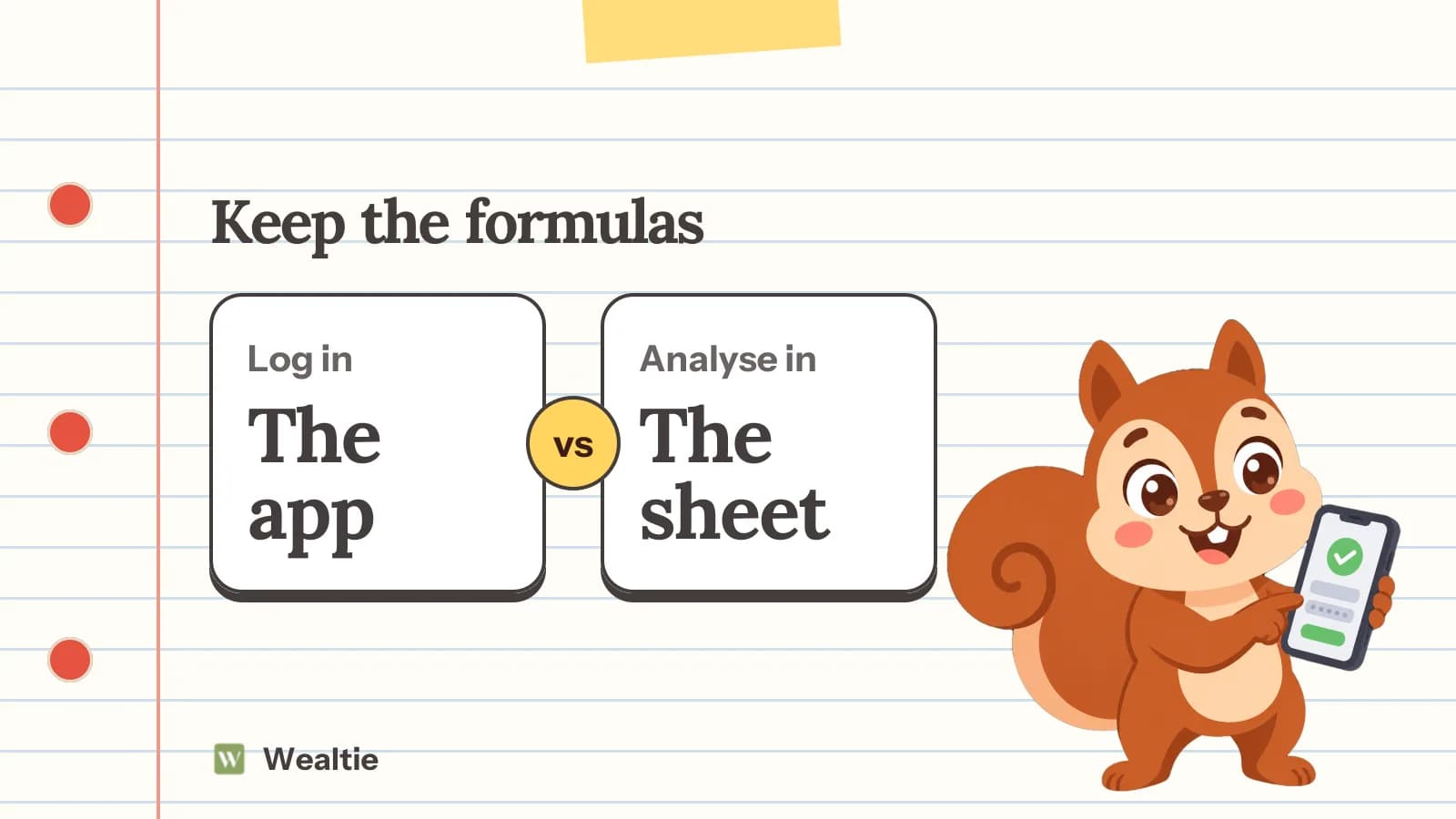
Yes. Wealtie exports all your data as a ZIP of CSV files, on the Free plan too. Export at the end of the month, paste the transactions into your spreadsheet, and your pivot tables, charts and yearly totals keep running on new data.
Many people end up with both: the app for logging and the day-to-day budget, the spreadsheet once a month or once a year for the deeper look.
Should you run both for a month?
If you're unsure, yes. Log every purchase in the app as it happens, and keep the spreadsheet as you normally would. At the end of the month, compare them.
The question isn't which one has better charts. It's which one was up to date on the 15th without you having to catch up. That's the one that can actually change how the month ends.
Questions people ask
No, Wealtie doesn't import spreadsheet history. Set up your categories and accounts, start logging from the 1st of a month, and keep the old spreadsheet for history. You can export Wealtie data as CSV files any time.
Usually because logging falls behind. A spreadsheet works at a desk; spending happens on the go. Logging on your phone at the till keeps the numbers current, and current numbers are what a mid-month check needs.
No. Wealtie exports all your data as a ZIP of CSV files on the Free plan, so you can paste new months into your spreadsheet and keep your own analysis running alongside the app.
Ten on the Free plan, which covers most budgets. Pro has unlimited categories, nested up to four levels, if your spreadsheet splits categories into sub-categories.
For one month, if you're unsure. Log in the app as you spend and keep the spreadsheet as you normally would. At the end, see which one was up to date without effort.
This article is general information, not financial, tax or legal advice. Your situation is your own; check the numbers that apply to you before you act on them.